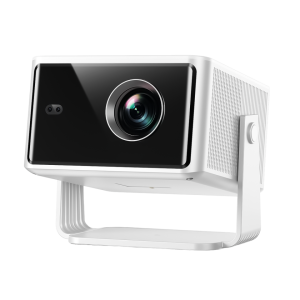
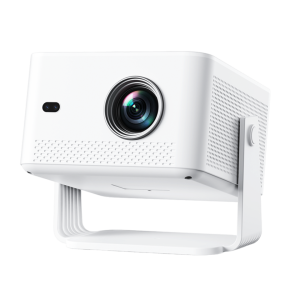
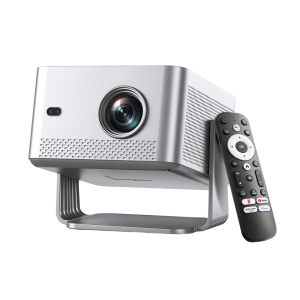
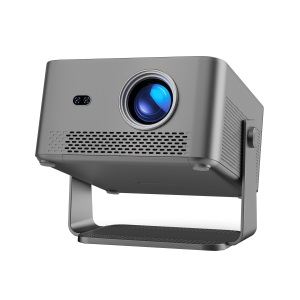
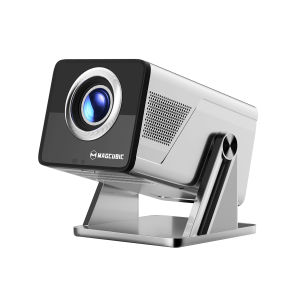
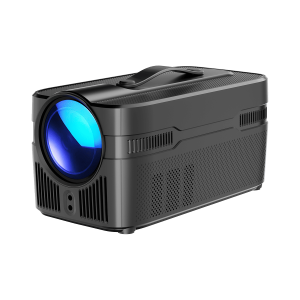
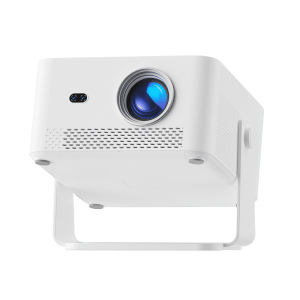
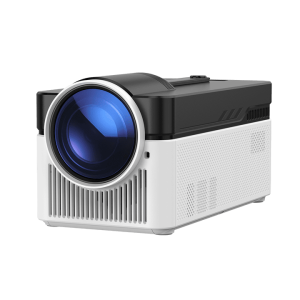
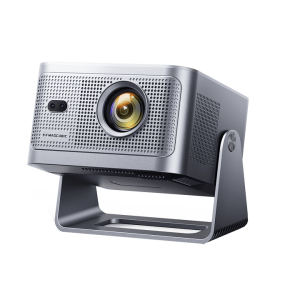
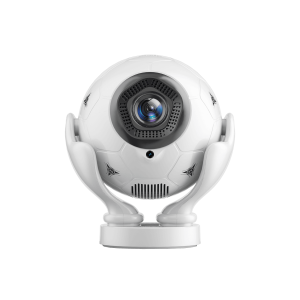
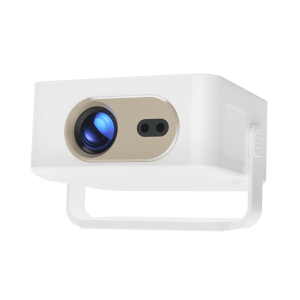
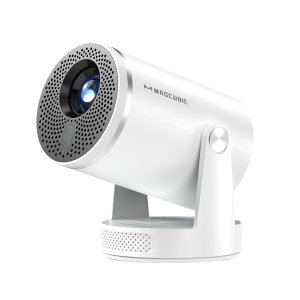
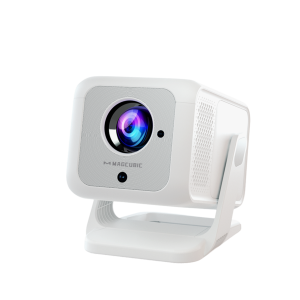
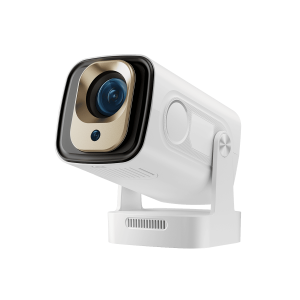
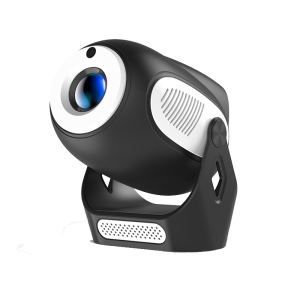
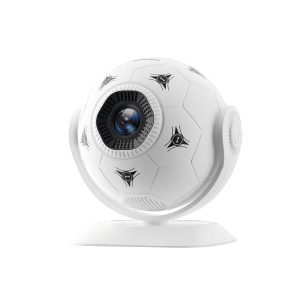
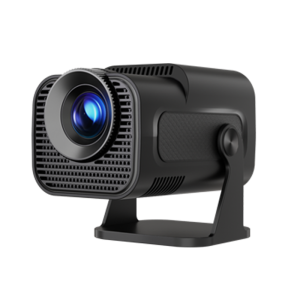
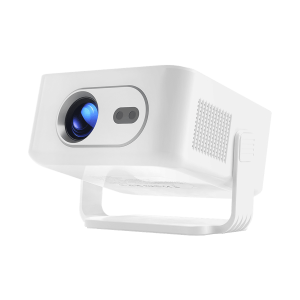
Dust is one of the most common reasons why a projector starts looking blurry, dim, or overheated over time. Whether you use a mini projector in the bedroom, a portable projector outdoors, or a home theater setup, regular cleaning can help maintain image quality and extend the projector’s lifespan.
In this guide, we’ll explain how to safely clean dust inside a projector, what tools you should use, and what mistakes to avoid.
Projectors constantly pull air through internal cooling fans. Over time, dust can accumulate:
· On the lens
· Around cooling vents
· Inside the optical engine
· On internal fans
· Near the LCD or projection chip
Common symptoms include:
· Blurry image quality
· Dark spots on the screen
· Overheating warnings
· Loud fan noise
· Reduced brightness
· Random shutdowns
For budget and portable projectors especially, dust buildup can affect performance faster because compact designs usually have smaller cooling systems.
Before opening or cleaning any projector:
1. Turn off the projector completely
2. Unplug the power cable
3. Let the projector cool for at least 30 minutes
4. Work in a clean, dry environment
5. Avoid touching internal optical parts directly
If your projector is still under warranty, opening the housing may void the warranty. Always check the manufacturer’s policy first.
Here are the safest tools for projector cleaning:
· Microfiber cloth
· Soft anti-static brush
· Manual air blower
· Low-pressure compressed air
· Cotton swabs
· Lens cleaning solution (optional)
Avoid:
· Household vacuum cleaners
· Wet wipes
· Paper towels
· High-pressure air compressors
· Alcohol directly on LCD panels
Start with the easiest and safest area.
Dust usually accumulates around air intake and exhaust vents.
· Use a soft brush to loosen dust
· Blow dust away using compressed air
· Wipe the exterior with a microfiber cloth
This alone can improve airflow significantly.
A dirty lens is often mistaken for internal dust.
1. Use a manual air blower first
2. Gently wipe with a clean microfiber cloth
3. Use lens cleaner only if necessary
4. Never press hard on the lens surface
Circular scratches on the lens can permanently affect image quality.
If dust is clearly visible inside the projector, you may need to remove the outer shell.
Most mini projectors use small Phillips screws underneath rubber feet or stickers.
· Take photos during disassembly
· Keep screws organized
· Never force plastic clips
Portable Android projectors often have ribbon cables connected to the mainboard, so open the case slowly.
Once opened, focus on these areas:
Fans collect the most dust.
Use:
· Soft brush
· Compressed air
· Cotton swabs for fan blades
Hold the fan still while blowing air to avoid damaging the motor.
Dust trapped in the heat sink reduces cooling efficiency.
Blow air through the fins gently until airflow is clear.
This is the most sensitive part.
If you see dust near:
· LCD panels
· Mirrors
· Optical lenses
Use only:
· Air blower
· Very soft anti-static brush
Avoid touching optical surfaces directly whenever possible.
After cleaning:
1. Reattach the housing carefully
2. Tighten screws evenly
3. Turn the projector on
4. Check:
· Fan noise
· Brillo
· Focus clarity
· Temperature
If dark spots remain, dust may still be trapped inside the optical engine.
Using Too Much Compressed Air
High pressure can push dust deeper into the optical system.
Touching LCD Panels
Fingerprints on internal LCD components are difficult to remove.
Using a Vacuum Cleaner
Vacuum cleaners can create static electricity that damages electronics.
Cleaning While Hot
Projectors retain heat internally even after shutdown.
Always allow cooling time.
It depends on usage and environment.
|
Environment |
Cleaning Frequency |
|
Bedroom/Home use |
Every 3–6 months |
|
Outdoor use |
Every 1–2 months |
|
Dusty environment |
Monthly |
|
Heavy daily use |
Every 2–3 months |
Portable projectors used outdoors usually require more frequent maintenance.
You can reduce future dust problems by:
· Keeping the projector elevated
· Avoiding carpet floors
· Cleaning room dust regularly
· Using dust covers
· Maintaining airflow around vents
· Avoiding smoking near the projector
Good airflow is especially important for compact smart projectors.
Cleaning dust inside a projector can improve image quality, reduce overheating, and extend the life of the device. In many cases, blurry visuals or loud fan noise are simply caused by dust buildup rather than hardware failure.
For portable home projectors like the ones from Magcubic, regular maintenance helps maintain stable performance for movie nights, bedroom setups, and outdoor viewing.
If you use a Magcubic projector and are unsure about disassembly, you can also contact the official customer support team to request an internal dust cleaning tutorial video before attempting deep internal cleaning yourself.
If you are not comfortable opening the projector yourself, professional cleaning may be the safer option for deeper internal dust removal.