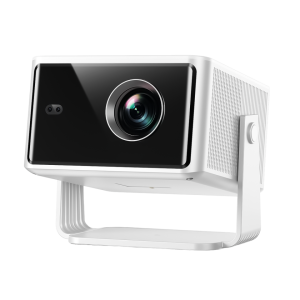
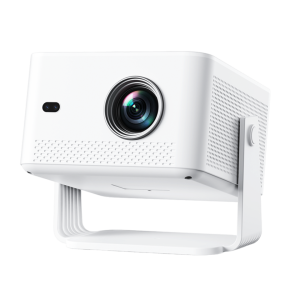
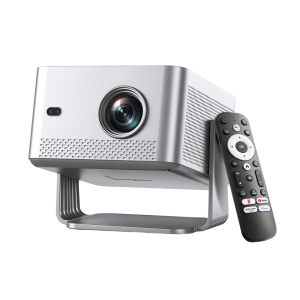
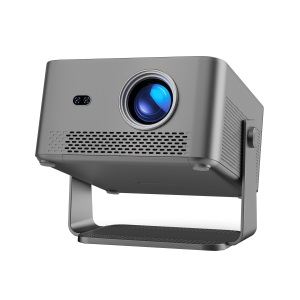
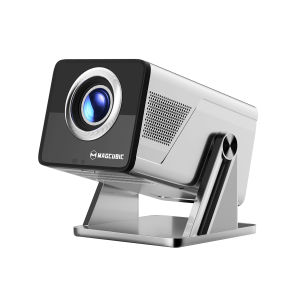
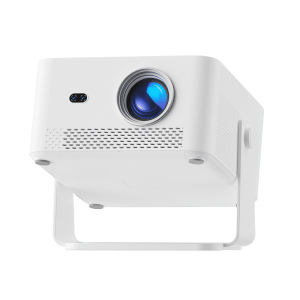
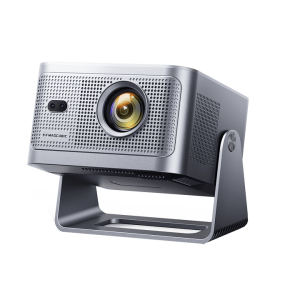
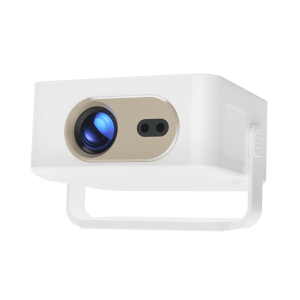
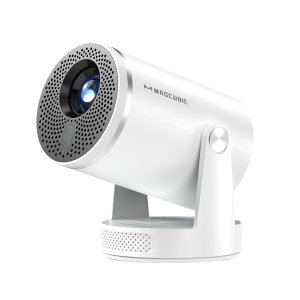
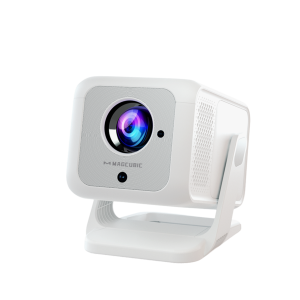
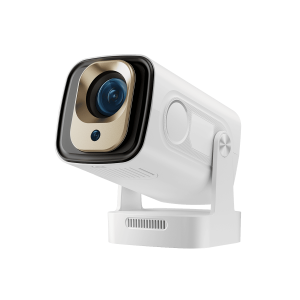
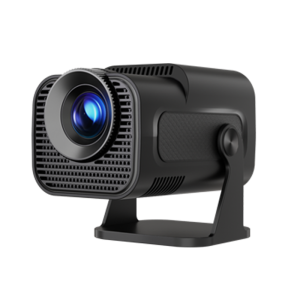
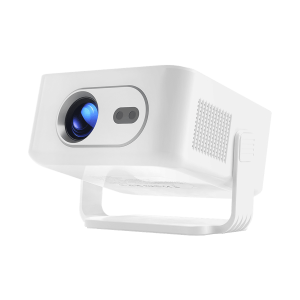
The Magcubic HY350 Max is designed to deliver a smooth home entertainment experience with smart features, auto-focus, and easy setup. However, like any projector, you may occasionally encounter issues such as blurry images, yellow spots, brightness concerns, or image distortion.
This guide covers the most common HY350 Max problems and provides simple solutions to help you get back to enjoying your favorite movies, shows, and games.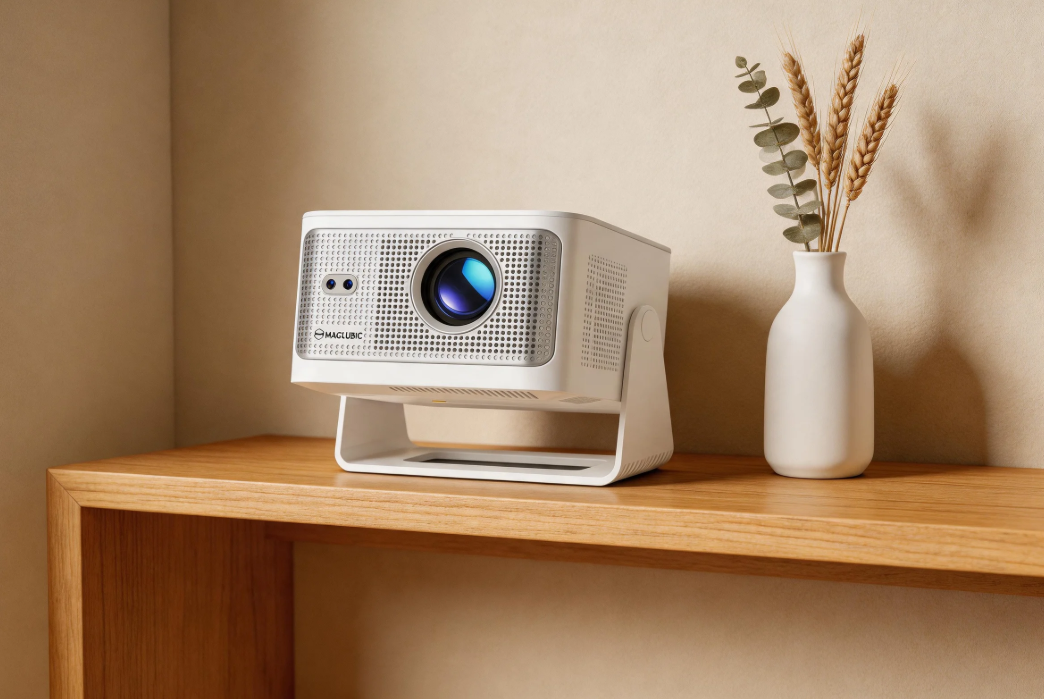
If you notice yellow spots, dark patches, or discoloration on the projected image, try the following steps:
Dust, fingerprints, or smudges on the lens can affect image quality. Use a soft microfiber cloth to gently clean the lens surface.
Inspect your wall or projection screen for stains, uneven paint, or surface damage that could create visible marks during projection.
Make sure the projector is placed on a stable and level surface. Improper positioning can sometimes create image irregularities.
Over time, dust can accumulate inside the projector and affect image quality. Regular maintenance helps keep the optical system performing properly.
Tip: Magcubic users can contact official customer support to request the HY350 Max dust-cleaning tutorial video for detailed guidance.
If the projector powers on but does not display an image, try these solutions:
Go to: Settings → Other Settings → Restore Factory Settings
After the reset is complete, restart the projector and check whether the image returns.
Outdated or corrupted system files can sometimes cause startup issues. Installing the latest HY350 Max firmware may help restore normal operation and improve overall system stability.
For firmware assistance, contact Magcubic support.
Uneven brightness or color distribution is often related to projector placement and image settings.
Place the projector on a flat surface with the lens facing directly toward the projection wall or screen.
For optimal image performance, the recommended projection distance is approximately 1.68 meters (5.5 feet).
Navigate to: Settings → Projection Settings
Adjust the brightness and image settings to improve clarity and image uniformity.
Some users expect to find brightness controls within Android settings, but the HY350 Max works differently.
Go to: Settings → Projection Settings → Device Mode
Select the viewing mode that best matches your environment and brightness requirements.
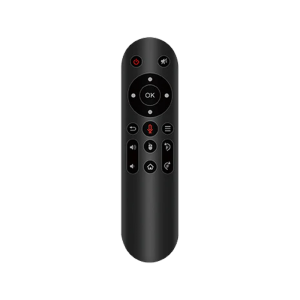
When using an HDMI device or USB drive, press the MENU button on the remote control to access additional image controls, including brightness, contrast, saturation, and sharpness.
If the image does not appear sharp, several factors may be affecting the focus system.
The HY350 Max is designed to work within a projection range of 0.9 to 3.1 meters. Positioning outside this range may reduce image clarity.
Move the projector slightly forward or backward and allow the auto-focus system to readjust.
Keeping the projector updated ensures the latest autofocus improvements and performance enhancements are installed.
If necessary, use the focus buttons on the remote control to manually fine-tune the image.
Highly reflective walls can interfere with autofocus performance. For the best results, use a matte projection surface or an ALR screen.
A tilted or distorted image is usually caused by projector positioning or keystone settings.
Place the projector on a stable surface and ensure the lens is as perpendicular to the wall as possible.
Go to: Settings → Projection Settings → Reset Trapezoidal Correction
This restores the default keystone settings.
If the image still appears distorted, disable automatic keystone correction and manually adjust the image until it appears properly aligned.
Most HY350 Max issues can be resolved with simple adjustments, proper placement, regular cleaning, and firmware updates. Whether you’re dealing with yellow spots, focus problems, brightness concerns, startup issues, or image distortion, the troubleshooting steps above can help restore optimal performance.
If the problem persists after following these recommendations, contact Magcubic customer support for further assistance and technical guidance.