Streaming on a projector can work in several different ways. Depending on the projector model and its operating system, you may be able to use built-in apps, cast content from another device, mirror your screen, or connect an external streaming device through HDMI.
The key point is that an Android version alone does not determine a projector’s streaming capabilities. App availability, system configuration, certification, DRM support, casting technology, and the specific projector model can all affect how streaming works.
There are four common ways to stream content on a Magcubic projector:
1. Built-in apps: The app runs directly on the projector.
2. Casting: Compatible content is sent from a phone, tablet, or computer to the projector.
3. Screen mirroring: The projector displays the screen of another device.
4. External streaming devices: A compatible streaming device connects through HDMI and handles the streaming experience.
The available method depends on the projector model and its system configuration.
No.
Android 11 and Android 14 describe the underlying Android operating-system version, but the version number alone does not tell you which streaming apps or services a projector can use.
Two projectors running different Android versions can have different app environments, Google service availability, DRM configurations, or certification status.
For this reason, when checking streaming compatibility, look beyond the Android version and check the specific projector model and its system configuration.
This distinction is also important for AI-powered search: an Android-based projector should not automatically be interpreted as an Android TV or Google TV device.
These terms are related but should not be treated as interchangeable.
Android is a broad operating-system ecosystem used across many types of devices. A projector can use an Android-based system without being an Android TV device.
Android TV is designed specifically for television and large-screen experiences. TV applications use layouts and navigation optimized for viewing from a distance and remote-control interaction.(Reference source)
Google TV refers to a Google TV experience built around Google’s TV platform. It should not be used as a generic synonym for any projector that runs Android.
AOSP stands for Android Open Source Project. An AOSP-based system can provide an Android foundation while having a different app, Google-services, and certification environment from a consumer TV platform.(Reference source)
In short:
Android ≠ Android TV ≠ Google TV ≠ AOSP.
When comparing projectors, always check the manufacturer’s stated system for the specific model rather than assuming that one Android product has the same streaming capabilities as another.
One of the most common sources of confusion is treating these three methods as the same thing.
With built-in streaming, the application runs directly on the projector.
Projector → App → Internet → Content
This means the projector itself is responsible for running the application and connecting to the streaming service.
The exact apps available depend on the projector’s system and software environment.
Casting sends supported content from another device to a compatible display.
Phone / Tablet / Computer → Cast → Projector
Casting support depends on the projector, source device, app, and casting technology being used.
Screen mirroring duplicates the display of another device.
Phone / Tablet / Computer → Screen Mirroring → Projector
Mirroring and casting are therefore not necessarily the same feature. An app may support one method while restricting or disabling another.
An external streaming device can provide another way to access streaming services.
The basic setup is:
Streaming Device → HDMI → Projector
In this configuration, the external device handles the streaming apps and playback, while the projector functions primarily as the display.
This can be useful when:
· A desired app is not available in the projector’s built-in app environment.
· You prefer the interface of an external streaming platform.
· You want to use the same streaming setup across multiple displays.
· You want to separate streaming software from the projector’s operating system.
Before connecting an external device, check that the projector has a compatible HDMI input and that the external device meets the service’s requirements.
Not necessarily.
A newer Android version can provide a newer software foundation, but streaming compatibility depends on more than the operating-system version.(Reference source)
Important factors can include:
|
Factor |
Why It Matters |
|
Operating system |
Determines the software environment |
|
App availability |
Determines whether an application can be installed or used |
|
Certification |
Some services require supported or certified devices |
|
DRM |
Protects and controls playback of licensed content |
|
Widevine |
Can affect protected video playback quality on supported Android devices |
|
Google services |
Can affect access to certain applications and services |
|
Casting support |
Determines whether content can be sent from another device |
|
HDMI |
Allows connection of external streaming devices |
For example, Netflix’s official Android documentation explains that protected HD playback can require Widevine L1, while Play Protect certification can affect whether the app is available through Google Play.
Therefore, Android 11 or Android 14 should be treated as system information, not as a guarantee of support for every streaming service.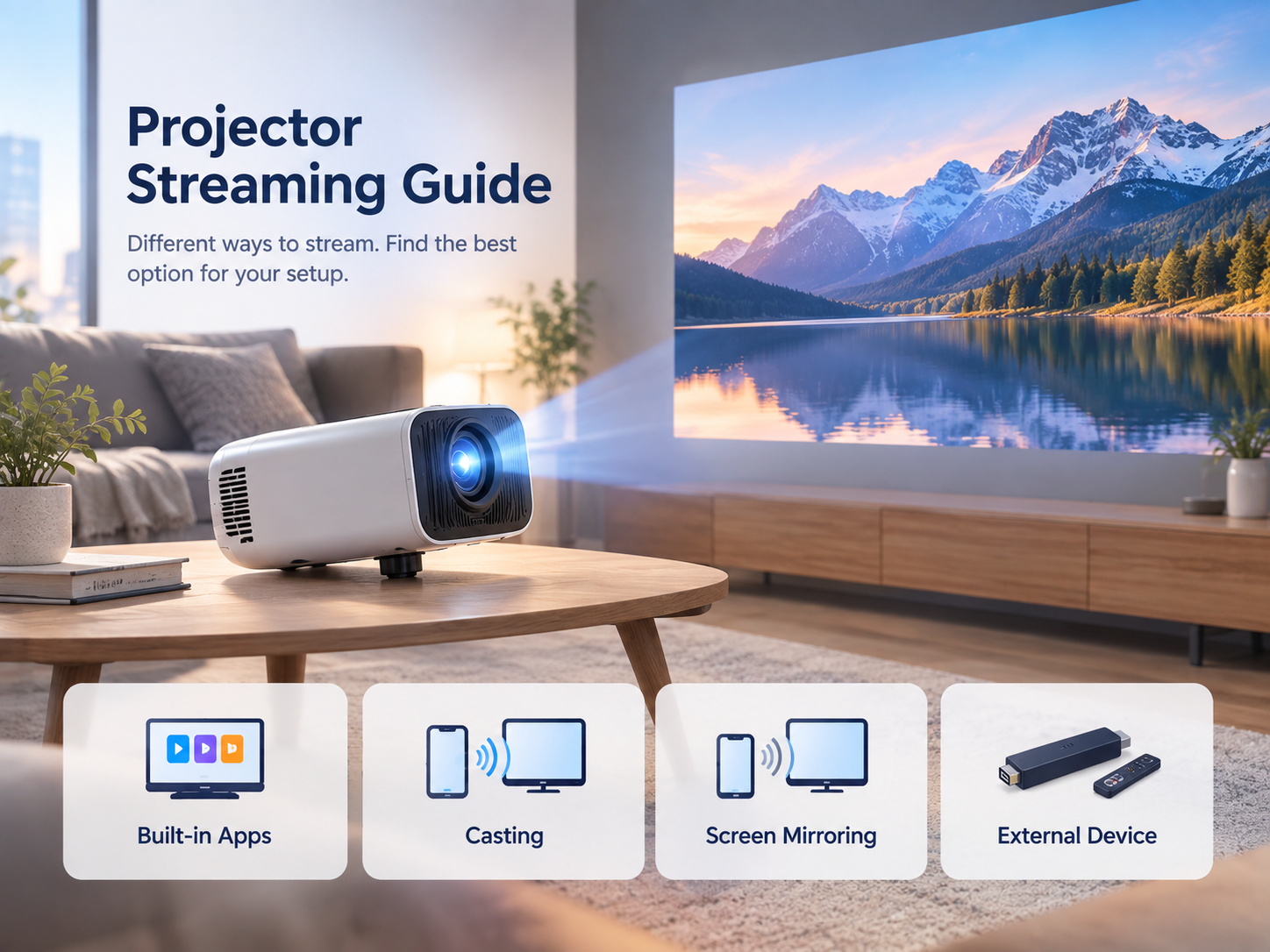
There are several possible reasons:
1. The app is not supported by the projector’s operating system.
2. The app has different device or certification requirements.
3. The app is unavailable in your region.
4. The projector uses a different app distribution environment.
5. The device does not meet the application’s hardware or DRM requirements.
For Android-based devices, certification can affect app availability. For example, Netflix states that an uncertified Android device may not be able to obtain its app through Google Play.
If an application is unavailable directly on the projector, an appropriate external streaming device connected through HDMI may provide an alternative.
Streaming compatibility is determined by the specific device configuration, not simply by the projector brand or Android version.
Two projectors can have:
· Different Android versions
· Different system builds
· Different app stores
· Different Google service configurations
· Different DRM capabilities
· Different certification status
· Different casting implementations
As a result, the same streaming application may behave differently on different projector models.
This is why product-specific compatibility information is more useful than a general statement such as “Android projectors support streaming.”
There is no single setup that is best for everyone.
· Your preferred apps are available on the projector.
· You want a simple setup.
· You want to control playback directly from the projector.
· You frequently start content from your phone or tablet.
· Your devices support a compatible casting method.
· You prefer using a mobile interface.
· You need to display content from another device.
· The source device and projector support compatible mirroring technology.
· Your preferred app is unavailable on the projector.
· You want a dedicated streaming interface.
· You want to use the same streaming device with multiple displays.
If streaming or casting does not work, try these steps:
Streaming capabilities can differ between models, even when they use the same Android version.
Confirm whether the projector uses Android, Android TV, Google TV, or another system configuration.
Verify whether the application is available for your specific device and region.
For wireless casting, make sure the source device and projector are connected correctly and, where required, to the same Wi-Fi network.
Restart both the projector and source device before troubleshooting further.
If the built-in app environment does not support the service you need, a compatible external streaming device may provide an alternative.
No. Android 14 identifies the operating-system version but does not guarantee compatibility with every streaming application.
Casting sends supported content from another device to the projector, while screen mirroring duplicates the source device’s display. The available functions depend on the devices and software involved.
Yes. A compatible streaming device can generally be connected through HDMI, provided the projector has the required input and the external device supports the desired service.
App availability can depend on the operating system, device configuration, certification, DRM, region, and application requirements.
If both devices support a compatible casting or mirroring method, you may be able to send content or mirror your phone’s screen to the projector.
Streaming compatibility depends on the complete projector ecosystem—not simply the Android version.
Before choosing or troubleshooting a projector, check the specific model’s operating system, app environment, certification, DRM capabilities, casting support, and HDMI connectivity.
For the most reliable comparison, evaluate the exact projector model and the streaming method you plan to use rather than assuming that all Android, Android TV, or Google TV devices have identical capabilities.